
Hey Sociala fam! 👋 Two weeks of releases are live, and most of them make everyday things on Sociala easier: getting paid, booking a call, joining a meeting and AI assistants can now do a lot more on the platform.
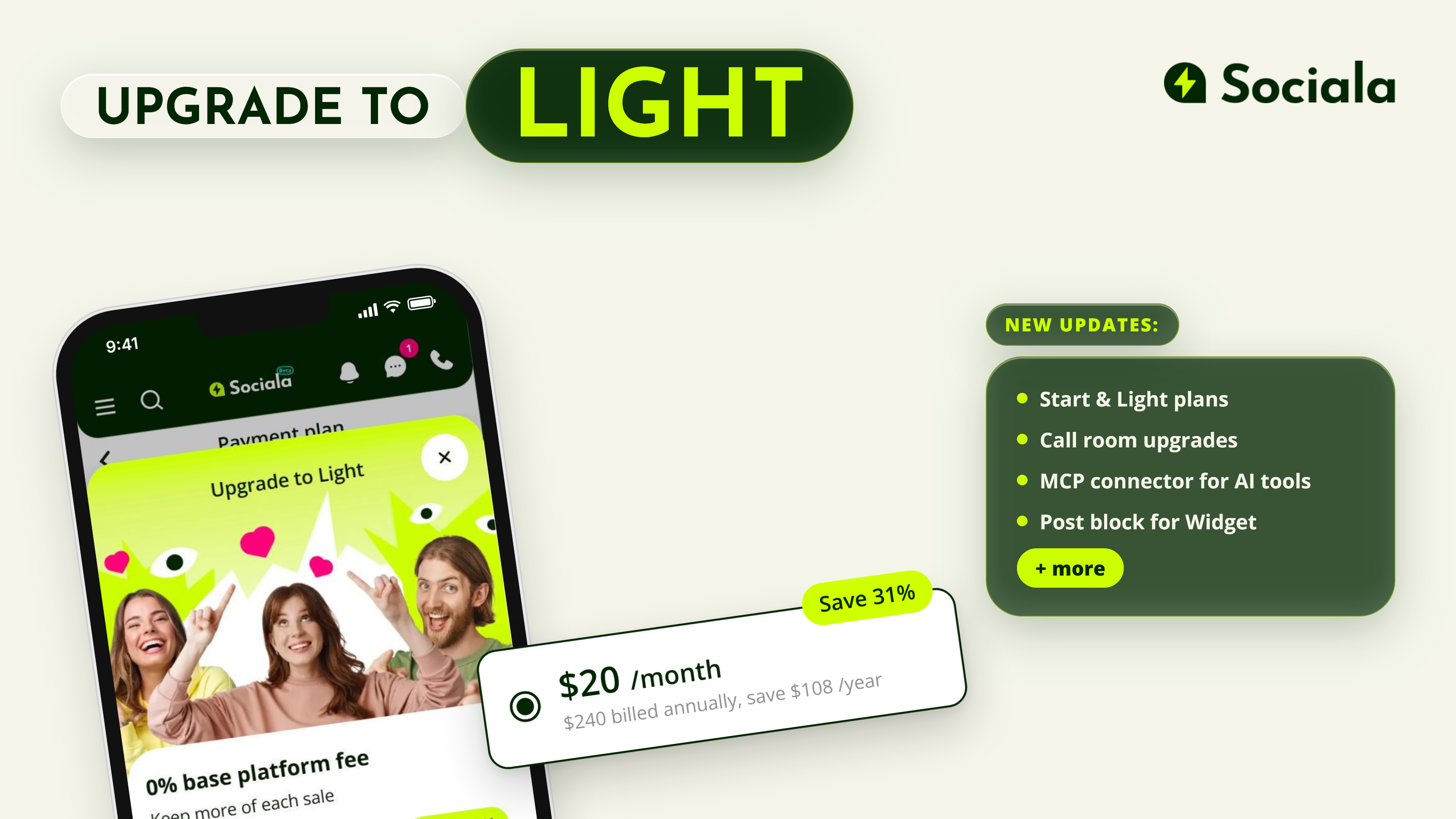
What’s New ⚡
1. Payment Plans
Sociala now has two plans, so you can choose the one that works best for how much you sell.
Start is included by default, with the same fee structure as before: Sociala’s 5% commission, plus transaction and referral fees.
Light helps you keep more from every sale by removing Sociala’s 5% commission. You only pay transaction and referral fees, so the more you sell, the more you can save. You can try it monthly or go yearly for even bigger savings.
Not sure when Light starts making sense for you? Use the commission calculator on the Pricing page to compare both plans using your own sales in just a few seconds. 💚
Next, the updates for your calls:
1. Smoother call flow
Calls booked through the widget are now easier to track from booking to payment. Clients and experts get detailed wallet records, plus email and in-app updates about bookings and meetings. If the funds reservation doesn’t go through, clients can retry from the My meetings page. Experts can also see when a booking was canceled because the funds couldn’t be reserved, while Stripe setup now takes just one tap from Call settings or a paid call card.
2. Call room improvements
Opening the meeting link early now takes you to a waiting screen with the call details and a camera preview, so you can check everything before anyone else joins.
Calls also handle inactivity, overtime, and reconnects more smoothly: you’ll see and hear a warning before a session ends, one person leaving won’t automatically end the call for the other, and feedback stays available after reconnecting.
3. My Meetings & Widget Onboarding
My meetings now gives you a clearer starting point, whether you already have a widget or are just thinking about offering paid calls.
If you don’t have a widget yet, a short onboarding shows how it can help you start taking paid calls and takes you straight to setup. The page also opens on the most useful tab automatically — Upcoming when you have meetings scheduled, or History when you don’t.
Experts can also spot clients more easily with a Client label next to their name.